
Project budget
Project budget analysis
Charging costs to a project and following the gap between budget and actuals.
Translated from the French original. The screenshots show Odoo in French, as our Senegalese clients use it.
Introduction
Project management means organising and coordinating a set of activities to reach a given objective, within constraints of budget and of time.
There are many project management methods and they all follow different logics. It is a wide field, and certainly needs more than one article to cover.
In this article we look in particular at budget tracking.
💡Other articles will follow, notably on tracking time spent, on planning, on milestone invoicing, on allocating people and on invoicing services.
A few specialist packages handle project tracking and replace the Excel spreadsheet to real advantage — a general-purpose tool, but not a very practical one. They let you create tasks, assign them and give them start and end dates to produce a schedule. That schedule then shows how the project is progressing, sometimes as a Gantt chart, which also handles the links between tasks: those that must be finished before the next ones can start.
Rarer are the project management applications that offer a direct connection to purchasing or to the company's accounts, so that the costs chargeable to a project can be followed.

By connecting every department of the company transparently, Odoo makes it easy to charge costs to a project.
Deploying an integrated solution as capable as Odoo means that when a supplier invoice arrives in the Purchase module, it can be charged in full or in part to a project in the Project module, and the costs can be watched as they build up.
You can therefore see very easily whether you are over budget or not, in real time, without waiting for the accounting entries to be keyed in.
In Odoo, entering a supplier invoice — possibly automated with AI — posts the related accounting entries directly, and can also generate automatically the analytic entries that budget analysis needs.
Creating a project in Odoo
To switch budget management (the analytic budget) on in Odoo, tick "Budget management" in the accounting settings:
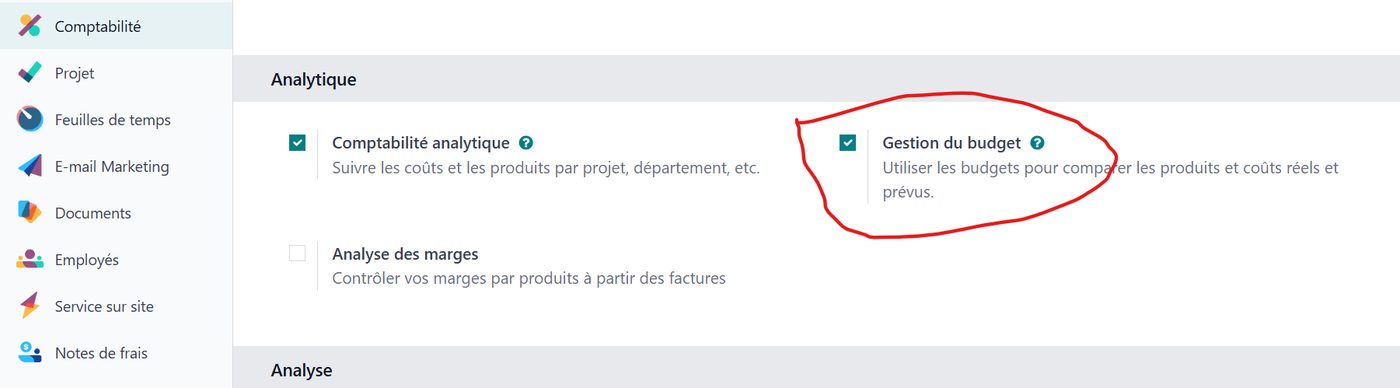
Budget management automatically switches analytic accounting on as well, because a budget is tied to an analytic account.
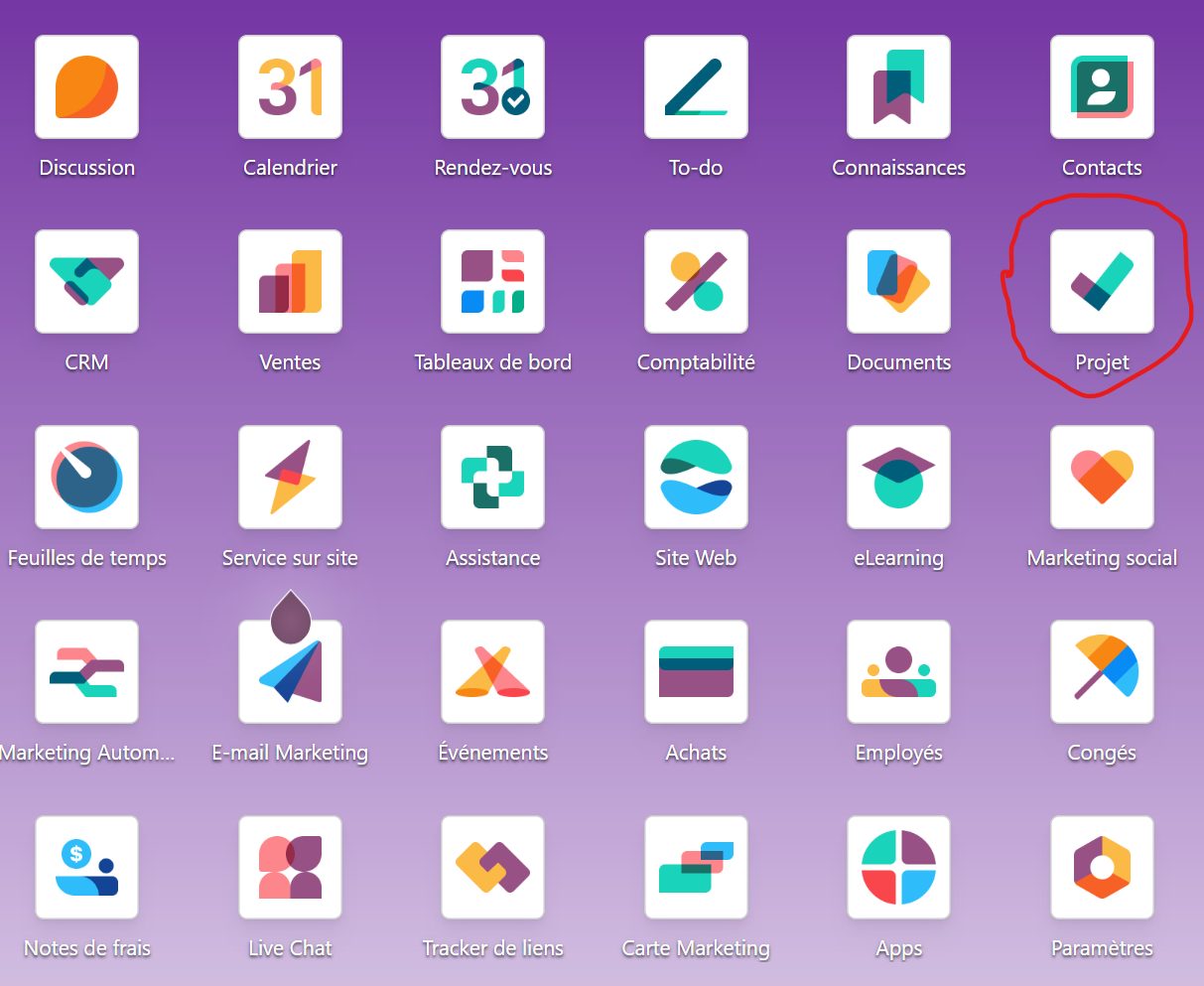
Once that is set, open the Project module to create a new project:
The project creation window appears (below).
In that window "Timesheets" is ticked by default, which lets you record, if you want to, the time spent by the teams assigned to the tasks, for a better view of the costs tied to the project. You can also tick "Billable" in order to invoice the client for the time the teams spend on the project, or for the materials used. Even if you work to fixed prices in your service quotations, you can value the time spent at an hourly cost and charge it to the project, to find out how profitable it is.
Here all we need to enter is the name of our project, "Projet BTP".
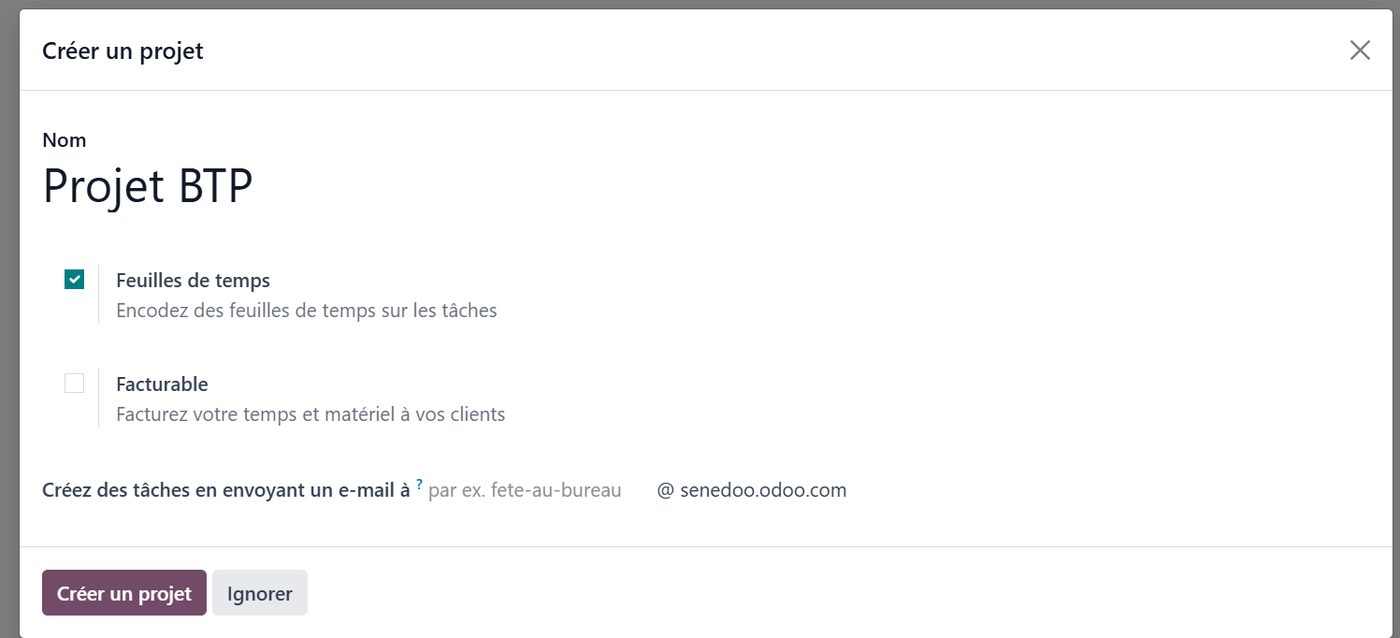
Then click "Create project" and the project exists.
Nothing could be simpler.
If your business is selling services, you can ask Odoo to create a project automatically when the sales order is confirmed. Each order line then creates a task. The project is created and tied to the execution of a sales order without anyone keying anything in.
Tying the project to an analytic account
Let us look at what Odoo has created for us, through the settings submenu on our project's kanban card:
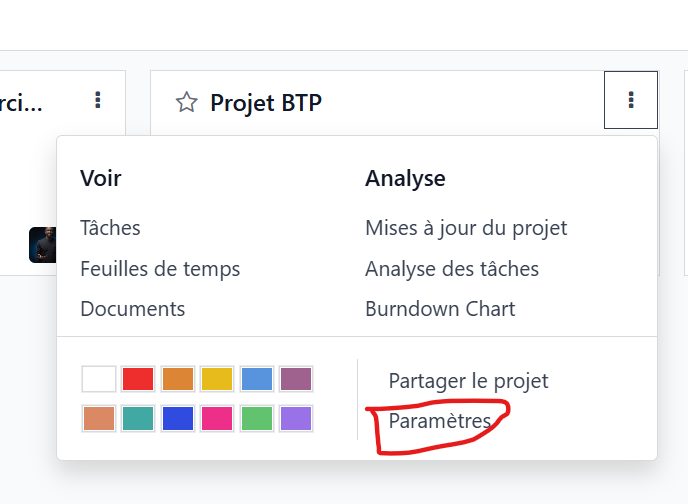
Odoo has automatically created an analytic account named "Projet BTP" and tied it to our project:
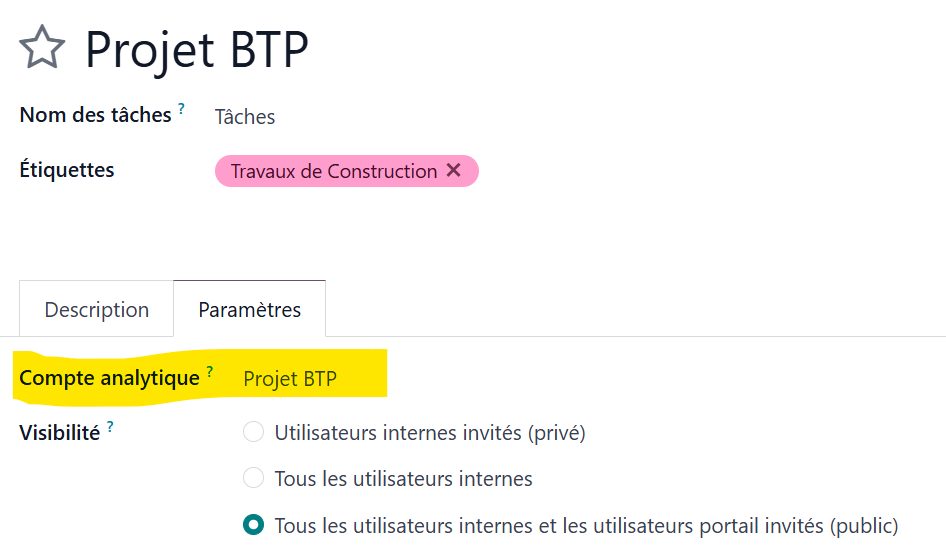
From now on, every analytic entry that moves the "Projet BTP" analytic account will be tied to our project. So when a supplier invoice comes in, all you have to do is pick the right project name to produce an entry that charges the purchase to our project.
Spreading a supplier invoice
When entering a supplier invoice, pick the project name and enter the distribution key as a percentage.
Distribution keys and charges can differ from one invoice line to the next.

Odoo has automatically created what is called an analytic dimension, which lets you spread a cost over one or several projects, each tied to a different analytic account.
You can create as many analytic dimensions as you like — to spread a cost by department, for instance, or by any other criterion you want to analyse.
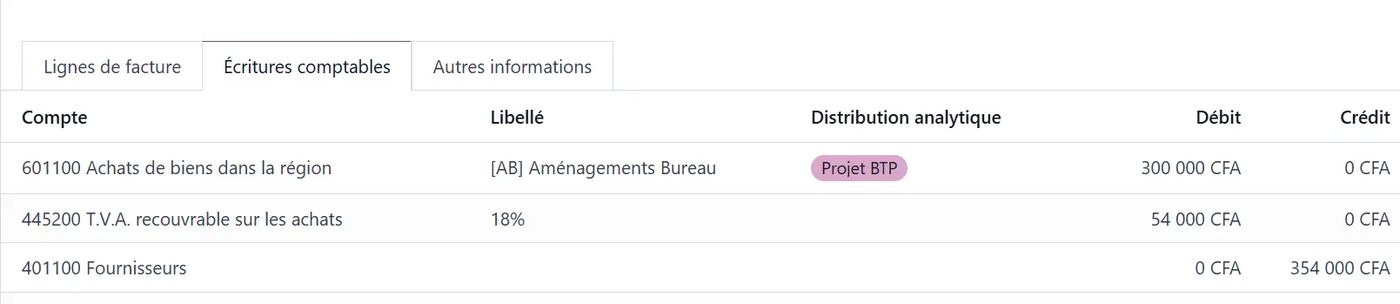
The accounting entries are generated automatically when the supplier invoice is validated:
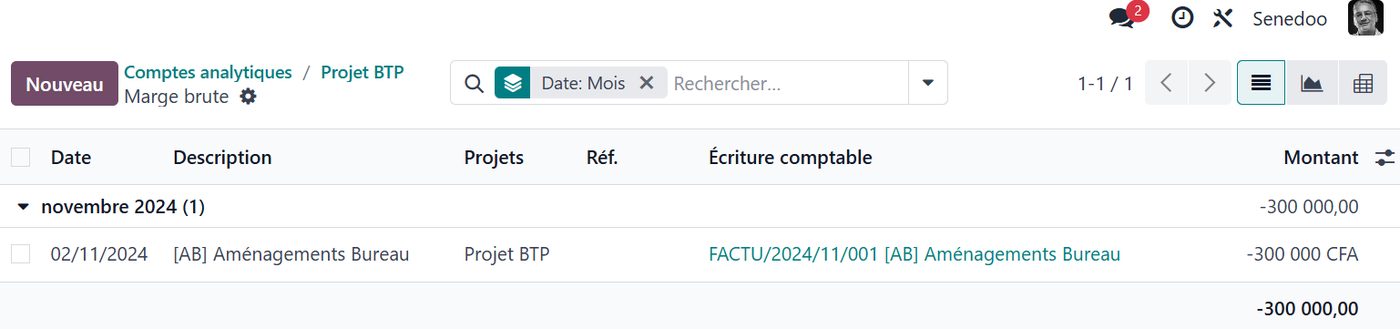
Likewise, the analytic entry tying this invoice line to the Projet BTP is generated too:
Now that our distribution model for purchases is in place, all that remains is to create our analytic budget. Go to the accounting module, choose the Accounting / Budgets menu, create the budget and tie it to our project to see the commitments appear.
For this small example we enter a budget of -1,000,000 F (expenditure) running from 16/10/2024 to 31/11/2024. Odoo can work out the amount committed as of today (2 November 2024) and, by linear interpolation, the theoretical amount, so we can see whether we are over budget.
The theoretical amount works out at -391,304 F, so all is well. We have used 30% of the budget, below the theoretical 39.13% expected by that date.

Budget summary
To finish the example, let us look in the Projects module at our project, updated automatically:
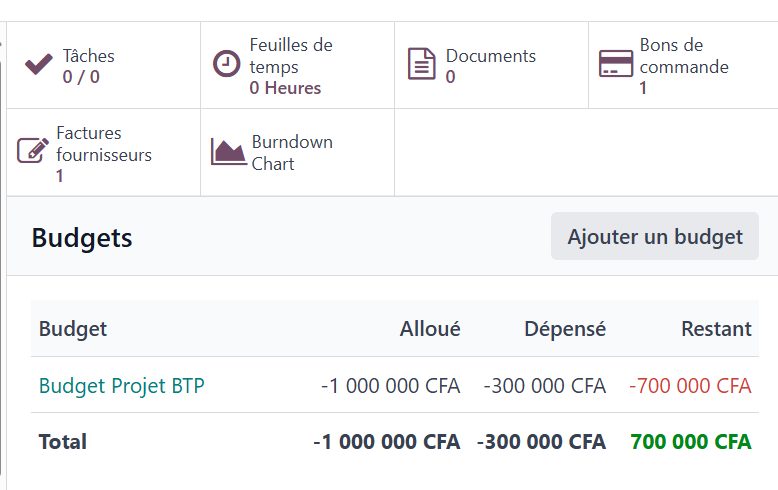
The supplier invoice has been charged to our project automatically, and has moved the budget allocated to it.
And there you are.
We hope this small example has shown you how easy Odoo is to use, and how much it can do.
✅Deploying Odoo in your company
- will save you precious time,
- will remove pointless re-keying of information,
- will hold all your data in a single application,
- will unify the flow of logistics, sales, HR, accounting and finance information,
- will give you dynamic, real-time dashboards.
If you would like to know Odoo better, or if you are thinking of deploying this fine tool in your organisation, do get in touch with one of our experts using the "Get in touch" button at the top of this page.