
Purchase requests
The purchase request approval flow
Who asks, who approves, who orders: putting purchase requests online.
Translated from the French original. The screenshots show Odoo in French, as our Senegalese clients use it.
Introduction
In this article we look together at what Odoo offers to put the purchase request flow online, so that a supplier order gets approved. On paper, it is the collection of stamps working its way up the hierarchy that signs a purchase order off.
From purchase request to supplier order
In Odoo this happens through e-mail notifications to the people responsible for approving or refusing. When someone asks for a purchase request to be validated, the managers receive an e-mail containing a link that opens the document directly and lets them validate it.
Here the requester is called, for the sake of the example, "Support Senedoo". They are the one who wrote the purchase request in the Purchase module and asked for validation.
The purchase request:
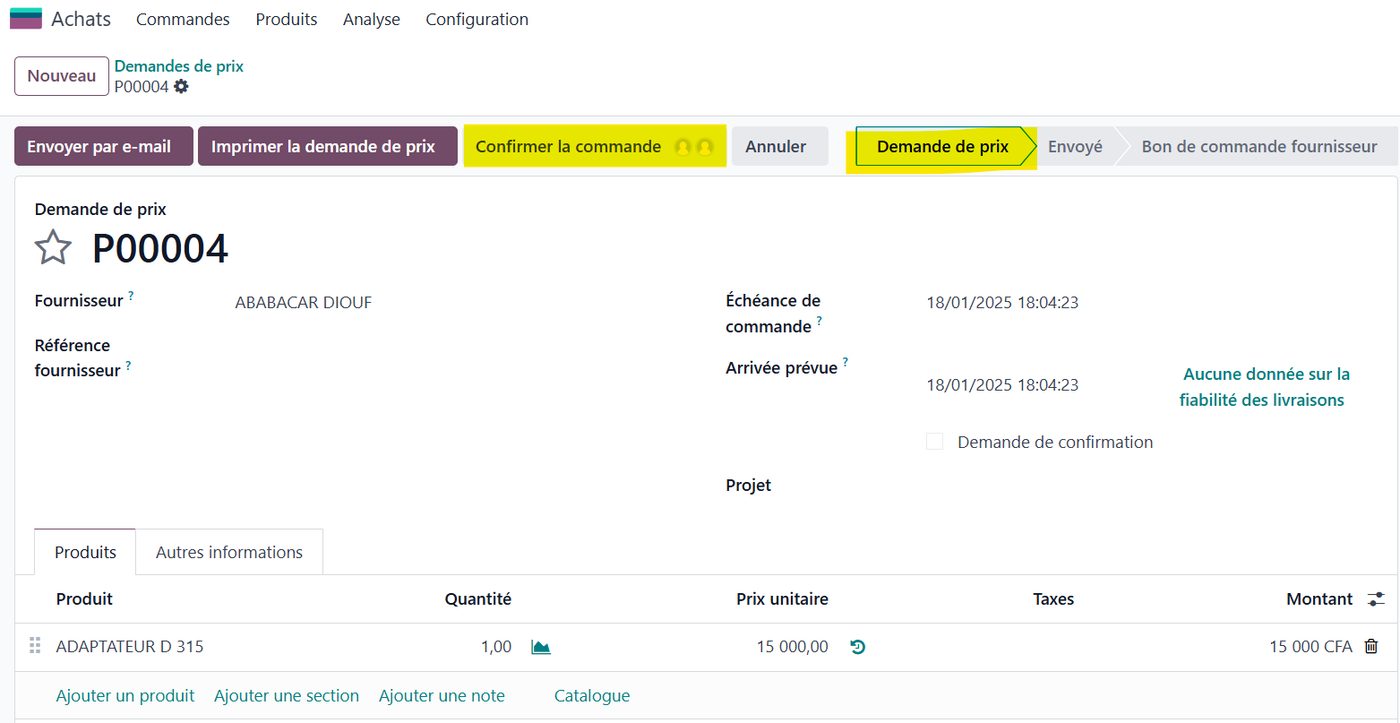
In Odoo, generating a supplier purchase order normally takes one click on "Confirm order". But when one or several approval rules condition the sending of the order, that click does not produce an order: it sends approval requests to the various managers.
Here you can see two small avatars on the button, which means two approvals are required.
And here you can see that one approval has already been given:
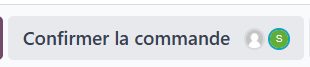
That indication on the button, together with the information in the document's chatter, tells you exactly where the request stands in the approval flow.
Each manager receives an e-mail asking them to approve (or refuse) the document:
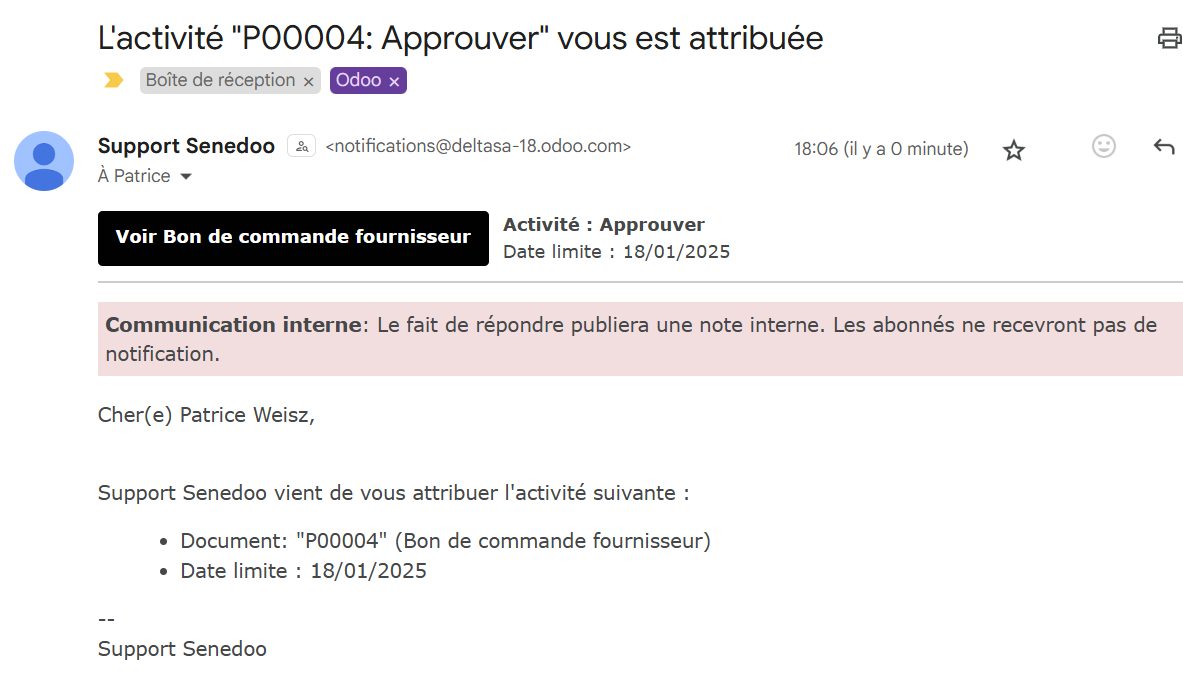
Clicking the black button takes them to the purchase request in Odoo, where they can examine it and see where the document stands in the approval flow:
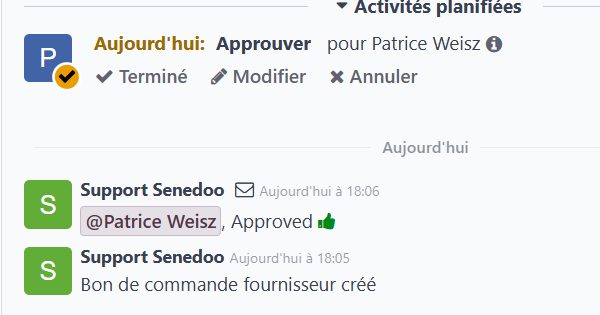
The manager can then approve the purchase request or not. Once every approval request has been answered, the "Confirm order" button is unlocked and the purchase request can be turned into a purchase order, ready to be sent or printed.
Both approvers have validated:

Setting up the approval flow
What we have seen here is a flow with two rules naming two "approvers" — say the purchasing manager and the finance director — but you can imagine far more intricate flows. Odoo handles every case you can think of, and these settings are made in the Studio module (available with enterprise licences).
- Approval can have up to nine levels:
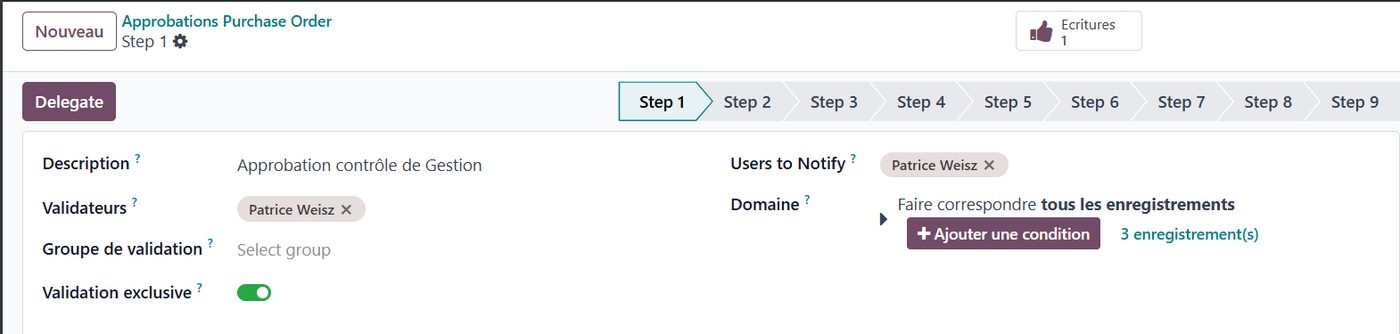
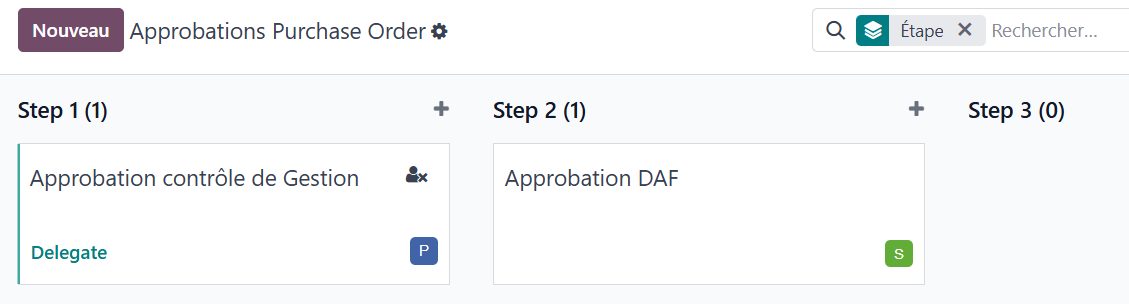
- Approval at a given level can be granted by one named person, or by a group of people
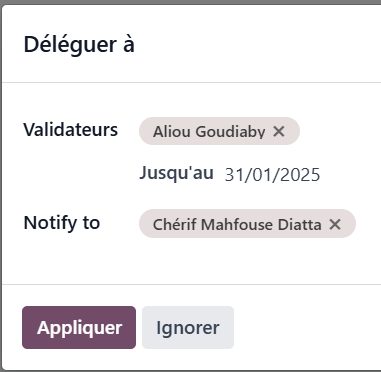
- Approval can be delegated during an absence (this means editing the rule), for a limited period if you wish:
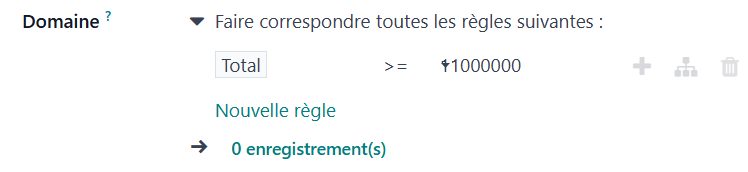
- Rules can be set at each validation step. For instance, the finance director's approval is only required above 1,000,000 francs.
Conclusion
In Odoo the ways of building custom approval flows are all but endless. And yet using them is very simple.
In one click the buyer sends the approval requests to the various managers, and Odoo tracks the document's progress and applies the rules on its own, working out who to ask and when.
Putting this online finally gives you an audit trail, and stops a paper document being forgotten on a desk somewhere, potentially blocking the whole supply chain. Anyone can see, in real time, where the request stands in the flow.
We hope this look at a powerful feature of Odoo's Studio module has shown you how effective our favourite ERP can be.
And there you are.
If you would like to know Odoo better, or if you are thinking of deploying this fine tool in your organisation, do get in touch with one of our experts using the "Get in touch" button at the top of this page.